How to Migrate Your Contacts from Mailchimp or Sendy to Replifier
By Replifier Team · ·Email · Mailchimp
The business problem
An independent clothing brand had been managing their list in Mailchimp for years. It had grown to over 6,000 contacts with custom fields, segments by product category, and campaigns they wanted to keep for reference. Switching platforms worried them for three main reasons: losing their subscriber data, having contacts who had unsubscribed receive emails again without asking, and having to rebuild all their templates from scratch.
The same situation applies to anyone running their own Sendy installation: the list is there, it works, but the operation has become costly or they need features Sendy does not offer.
How Replifier solves it
Replifier imports directly from Mailchimp and Sendy export files. The process preserves lists, contacts, custom fields, suppressions, templates, campaigns, segments, rules, and blocked domains. Consent history is carried over too: confirmed contacts come in as subscribed; those with pending double opt-in go into a queue until they complete that step.
What makes the difference is that suppressions — unsubscribes, hard bounces, and complaints — arrive as active suppressions in Replifier. There is no risk of a contact who unsubscribed in Mailchimp receiving an email from Replifier the next day.
Step by step
1. Export your list from the source platform
From Mailchimp: go to Audience → Manage Audience → Export Audience. Include all fields and subscription statuses.
From Sendy: use your installation’s export feature. The file will include lists, subscribers, templates, campaigns, segments, and automation rules.
2. Start the migration in Replifier
In the dashboard, go to Imports and select your source platform (Mailchimp or Sendy). Upload the export file and confirm the destination settings.
3. Wait for Replifier to process the migration
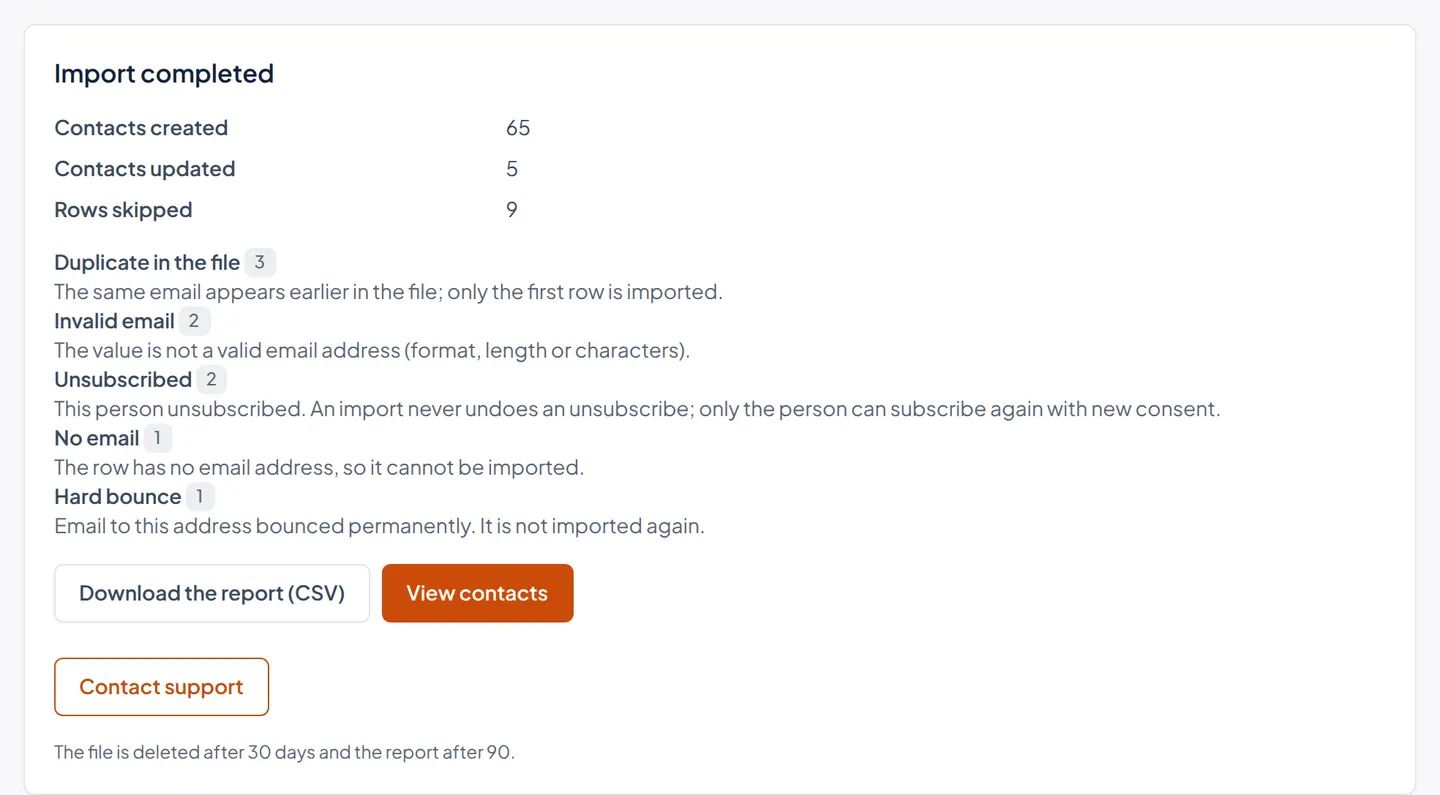
The process runs in the background. Replifier makes two passes: first the confirmed contacts, then those pending double opt-in. When it finishes, the status changes to completed and the results summary appears.
4. Review the results summary
The summary shows, for each migrated entity, how many records were imported and how many were skipped with their reason. The key field is the reconciliation: the sum of completed migrations plus skipped ones must match the total declared in your export. If it does not, the summary flags the discrepancies.
You will also see counters for pending (contacts in the double opt-in queue) and warnings (non-critical situations worth reviewing).
Details to know
Consent: all migrated contacts come in with consent mode declared and attested=true. Replifier records that those contacts gave you permission at the source, with the platform name (Mailchimp or Sendy) as the reference. It is not an automatic assignment without backing.
Unconfirmed contacts in Sendy: subscribers with unconfirmed status in Sendy do not come in as subscribed. They go into the double opt-in queue and wait there until the contact confirms; there is no way to skip that step, not even via API.
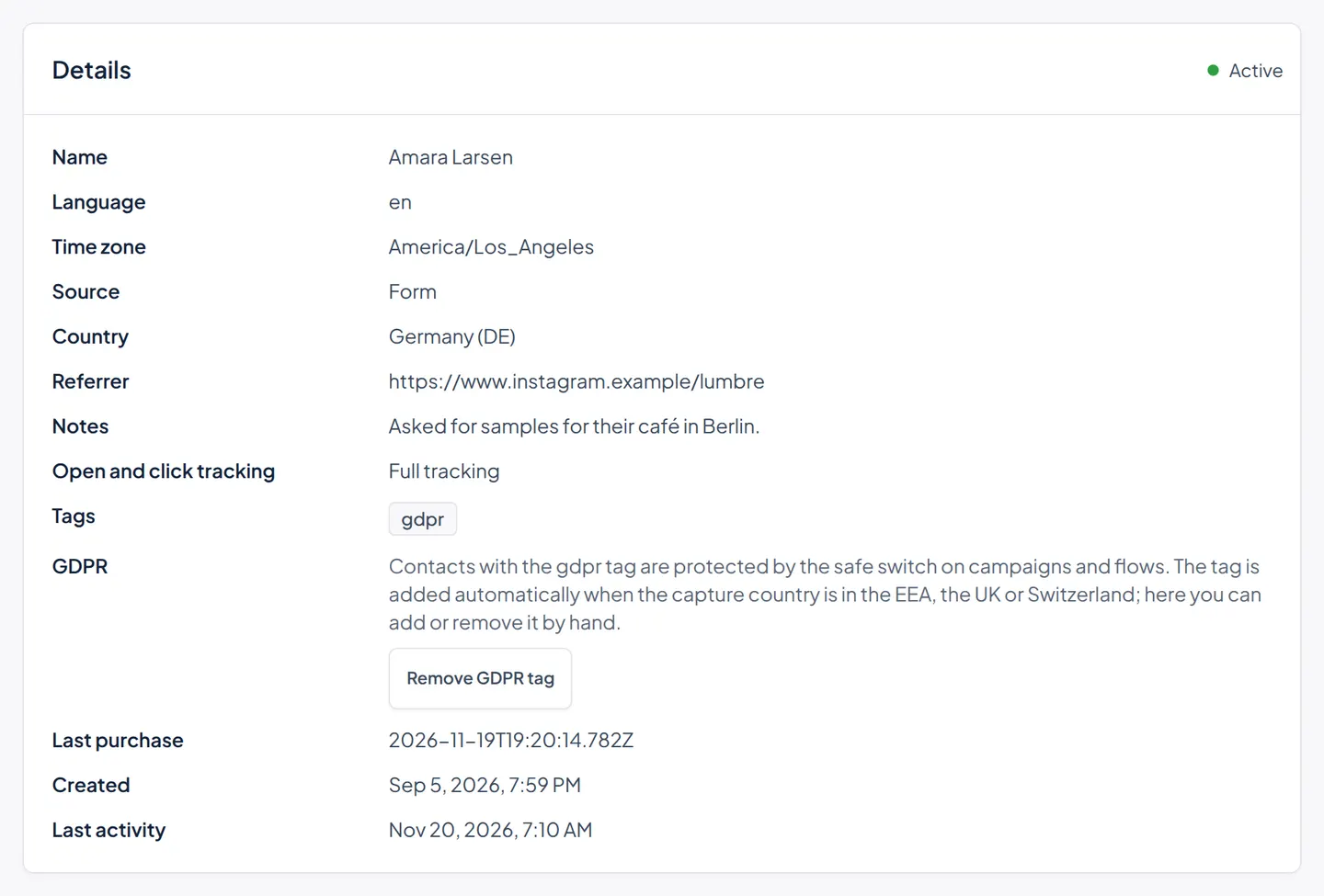
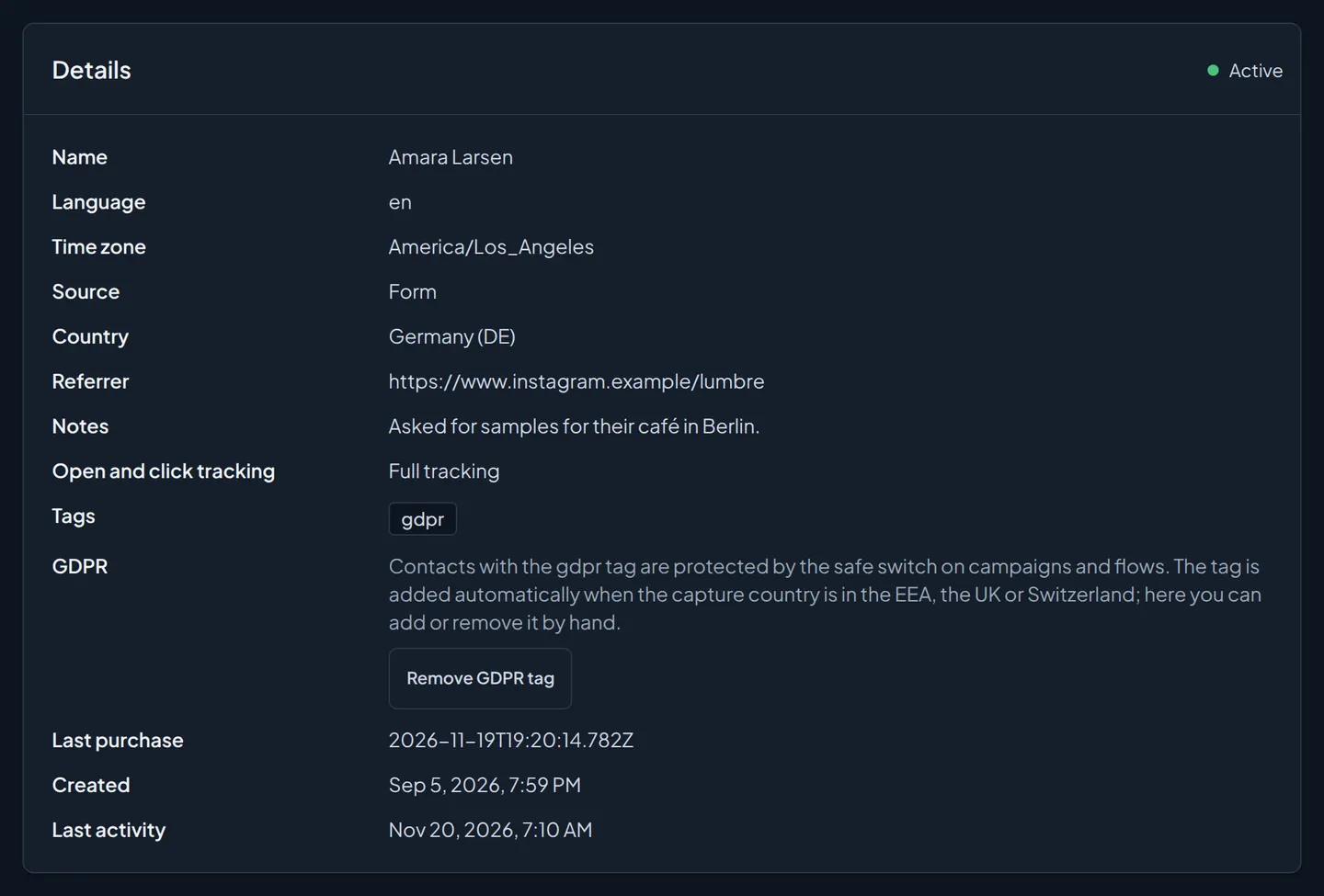
GDPR tag in Sendy: if a subscriber had gdpr=1 in your Sendy export, Replifier automatically adds the GDPR tag to them.
Segments in Sendy: dynamic segments are migrated when their conditions have an equivalent in Replifier. When they do not, they are converted to a static tag and the summary includes a segment_static_tag warning. You can recreate them manually using the available filters in the segment editor.
Template names: templates migrated from Mailchimp appear as “Migrada de Mailchimp”; those from Sendy appear as “Migrada de Sendy”.
Free plan: if your account is on the free plan, Replifier applies a limit of 1,000 new contacts per month. The migration generates a warning as it approaches that limit, but does not stop the process.
What you should see when done
- Migration status shows completed.
- Reconciliation passes: declared total = migrations + skipped.
- Confirmed contacts appear as subscribed in Replifier.
- Contacts with an unsubscribe or bounce remain suppressed and do not receive campaigns.
- Pending contacts are in the double opt-in queue (if any existed).
Common errors
| Situation | What it means | What to do |
|---|---|---|
segment_static_tag in warnings |
Segment conditions have no equivalent in Replifier | Recreate the segment using available filters |
| Contacts in double opt-in queue | They were unconfirmed in Sendy |
This is normal; they will confirm before receiving campaigns |
tag_limit_reached in warnings |
The contact already had the maximum allowed tags | Check the summary; some tags were not carried over |
| Reconciliation does not close | Imported total does not match the exported total | Review the discrepancies flagged in the results summary |